
When you add a domain for use in your organization, users who use the domain as the email domain for their ID can automatically request to join the organization when they sign up. To add a domain to your organization, you must complete a verification process to confirm that you actually own the domain.
To add a domain, refer to the following instructions.
Go to the Domain Management screen
- Log in to the Megazone Admin console with an organization administrator account.
- In the Megazone Admin console, go to Settings > Domain Management.
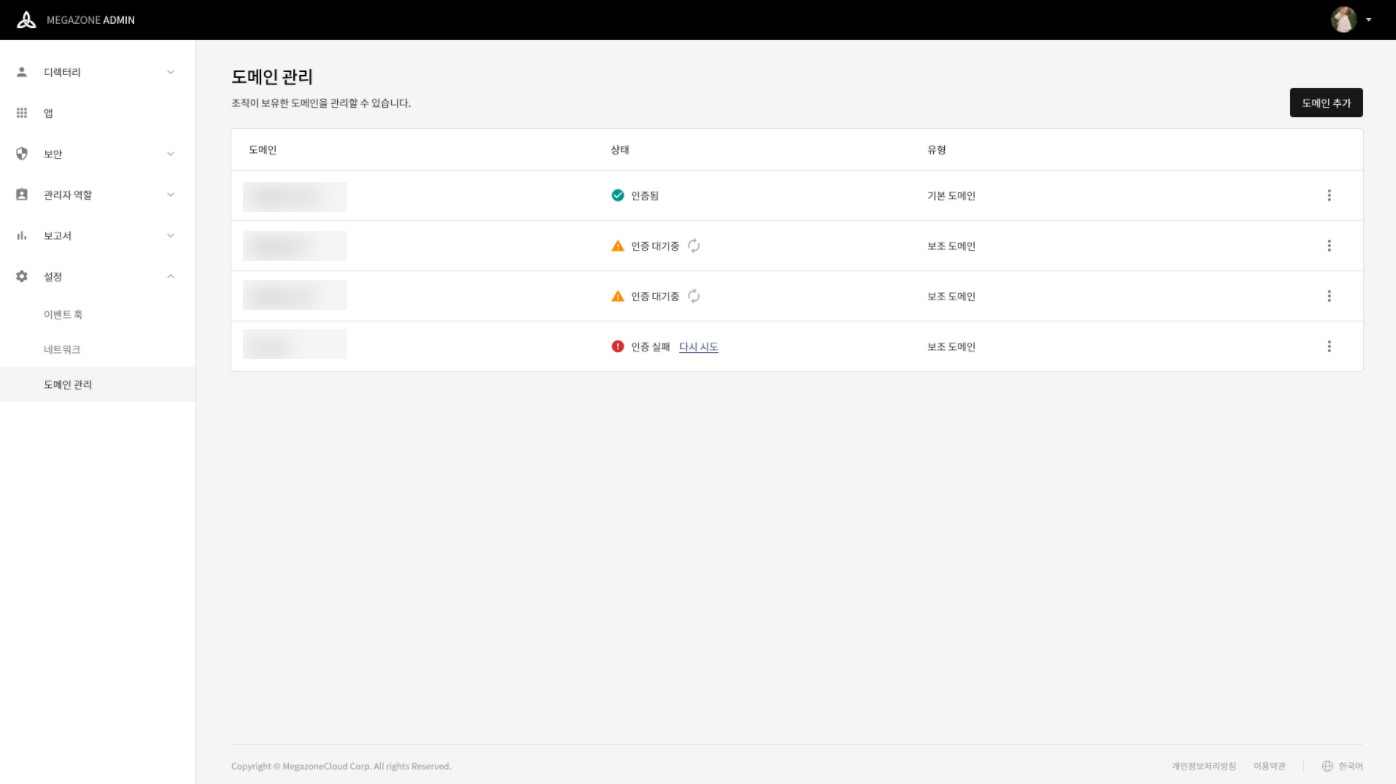
Add a domain
- In Domain Management, click [Add Domain].
- In the Add Domain dialog, enter the name of the domain you want to add. You can use a subdomain as the domain name. However, if the domain you want to add has already been added to this organization or is being used by another organization, it cannot be added again.
- Click [Add and Verify].
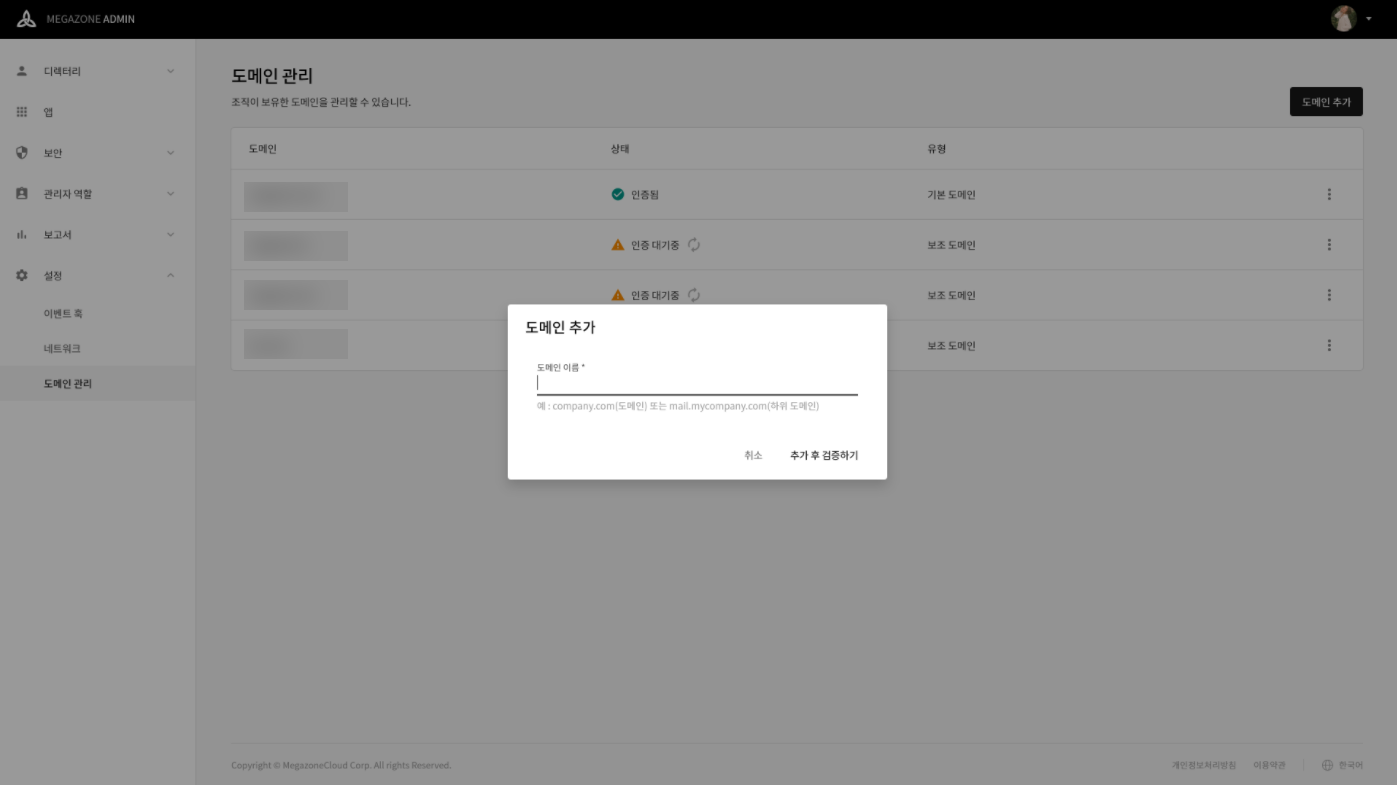
Verify the domain
- In Domain Management, click [Configuration Information] for the domain you want to verify.
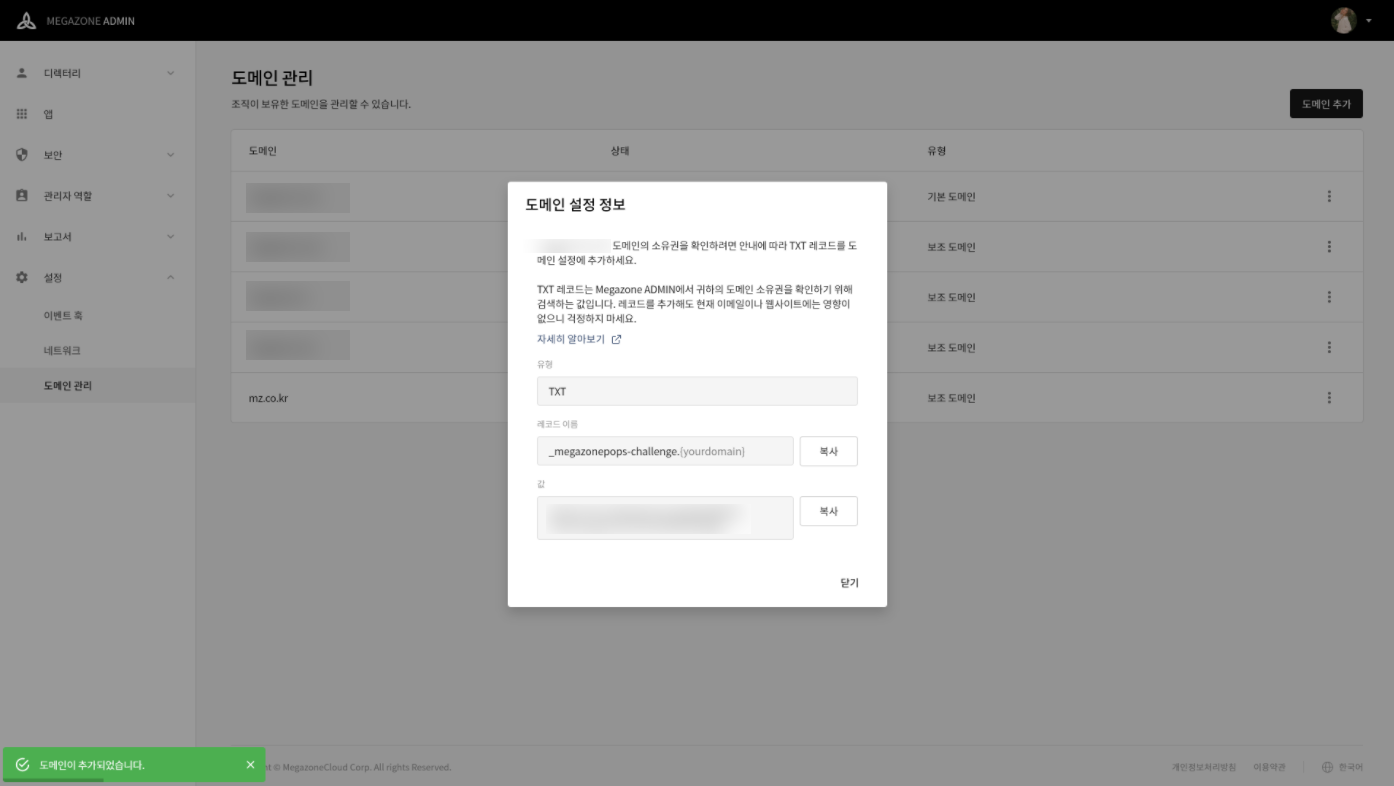
- Using the values displayed in the Domain Configuration Information dialog, add a TXT verification record to the DNS records of the domain host. Refer to the instructions below for how to add a TXT verification record to the DNS records of the domain host.
How to add a TXT verification record to the DNS records of the domain host
1. Open the domain host's website in a new tab
2. Log in to the domain host and go to the DNS record management menu
3. Add a TXT verification record
- Record type: Select TXT.
- Record name: Enter _megazonepops_challenge.{yourdomain.com}. Replace {yourdomain.com} with the name of the domain you want to verify.
- Record value: Copy and paste the value displayed under 'Value' in the Domain Configuration Information dialog.
4. Save the record
- Save the record. If a warning message about changing the DNS settings appears, you can ignore it. Adding a TXT record will not damage your website or DNS settings.
- When you return to the Megazone Admin console, domain verification runs automatically at regular intervals. If the TXT verification record was added correctly, verification will be completed automatically.
- If the domain status is displayed as 'Verification failed', check again that the TXT verification record was added correctly, and click [Retry].
※ Depending on the DNS host, it may take up to 72 hours for changes to be updated. If verification does not complete even though you added the record correctly, we recommend checking again after 72 hours.
Comments
0 comments
Article is closed for comments.